Selecting Aircraft
Selecting the Aircraft (MSFS 2020)
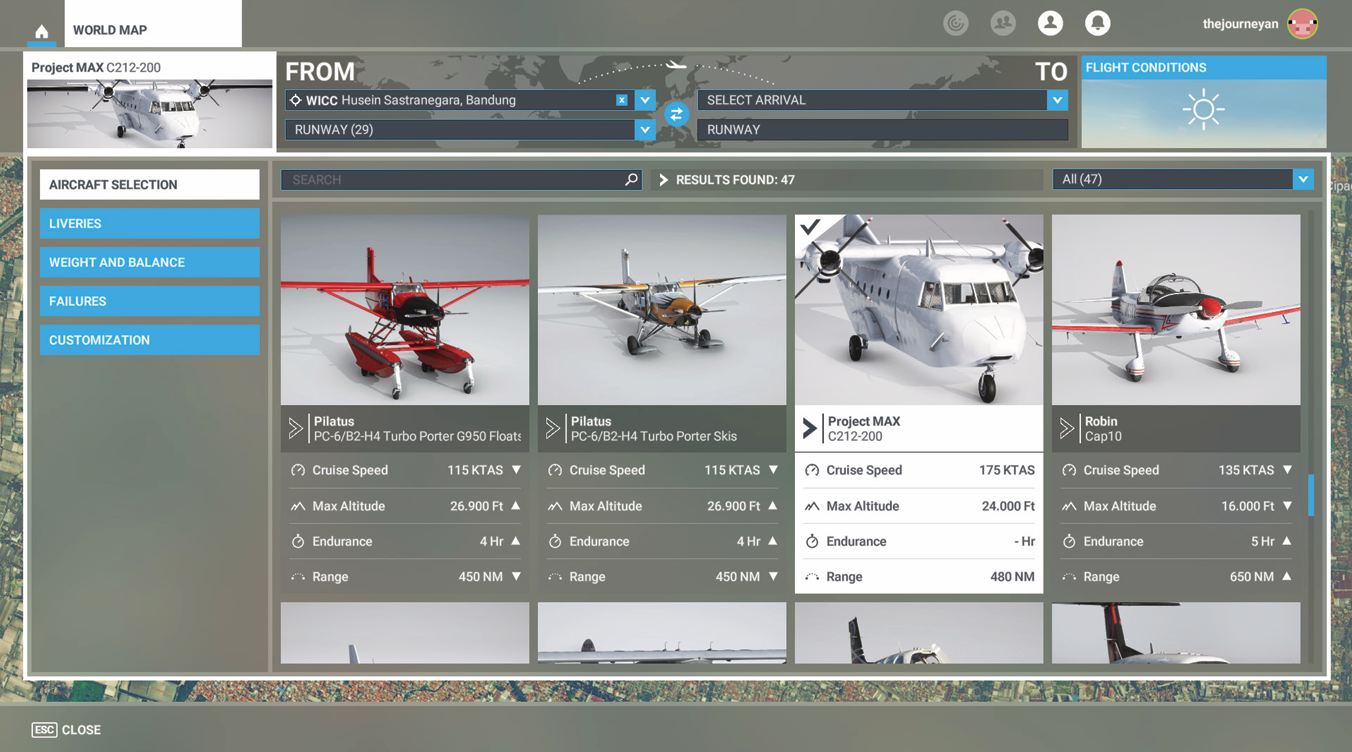
From the Microsoft Flight Simulator main menu, select World Map, then choose Project MAX C212-200 from the aircraft selection menu. Once selected, choose your preferred livery from the Liveries menu before proceeding.
The Passenger and Military variants are installed under a single aircraft entry. Cabin configuration can be selected at any time through the Electronic Flight Bag (EFB) and does not require selecting a different aircraft After selecting the aircraft, choose a suitable parking stand or gate, then press Ready to Fly to enter the cockpit
Selecting the Aircraft (MSFS 2024)
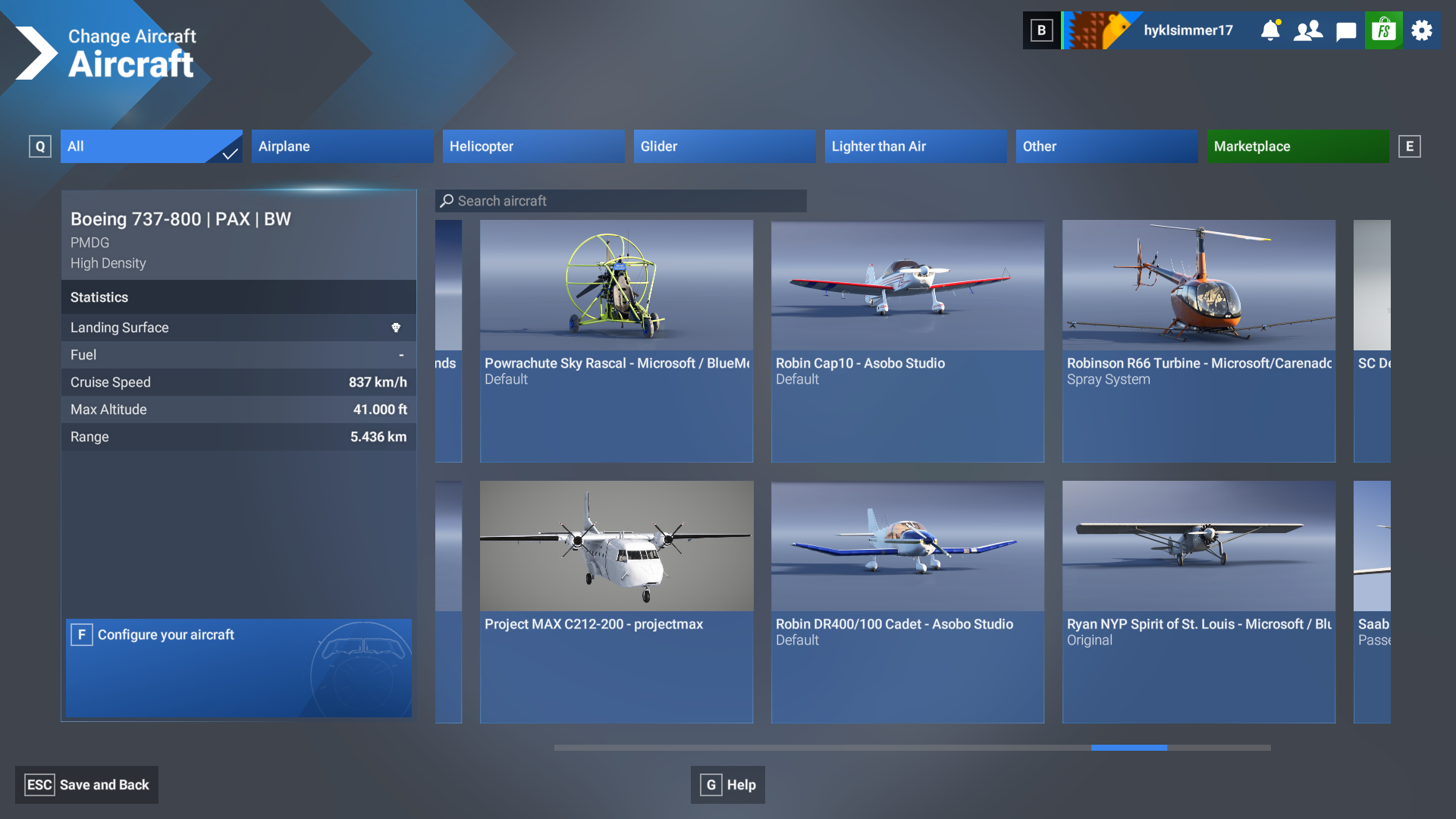
From the Microsoft Flight Simulator main menu, select World Map, then choose Project MAX C212-200 from the aircraft selection menu. Once selected, choose your preferred livery from the Liveries menu before proceeding.
The Passenger and Military variants are installed under a single aircraft entry. Cabin configuration can be selected at any time through the Electronic Flight Bag (EFB) and does not require selecting a different aircraft After selecting the aircraft, choose a suitable parking stand or gate, then press Ready to Fly to enter the cockpit
Key Bindings & Hardware Configuration
The projectmax C212-200 is designed to operate using the default Microsoft Flight Simulator control assignments. In most cases, no additional controller configuration is required, allowing the aircraft to be flown immediately after installation. All primary flight controls, engine controls, and external lighting functions are mapped to the simulator’s standard control events to ensure broad compatibility with a wide range of hardware. If you are using a custom controller profile or dedicated flight simulation hardware, we recommend verifying that the essential flight and engine controls are assigned correctly before operating the aircraft. This is particularly important for the engine power and propeller RPM controls, as these are required for normal aircraft operation throughout all phases of flight. The following table lists the recommended Microsoft Flight Simulator bindings used by the projectmax C212-200
| Aircraft Control | Recommended MSFS Binding |
|---|---|
| Power Levers | THROTTLE AXIS (OR THROTTLE 1&2 AXIS) |
| RPM Levers | PROPELLER AXIS (OR PROPELLER 1&2 AXIS) |
| Aileron | AILERONS AXIS |
| Elevator | ELEVATOR AXIS |
| Rudder | RUDDER AXIS |
| Nosewheel Steering | NOSE WHEEL STEERING AXIS (Optional) |
| Anti-Collision Light | TOGGLE BEACON LIGHTS |
| Position Light | TOGGLE NAV LIGHTS |
| Taxi Light | TOGGLE TAXI LIGHTS |
| Landing Light | TOGGLE LANDING LIGHTS |
| Toggle Hydraulic Switch | TOGGLE HYDRAULIC SWITCH |
| Toggle Gustlock | TOGGLE TAIL WHEEL LOCK |
| Flaps Axis 0-100% | FLAPS AXIS |
| Increase Flaps Angle 1 notch | FLAPS INCR |
| Decrease Flaps Angle 1 notch | FLAPS DECR |