Electronic Flight Bag (EFB)
The projectmax C212-200 Electronic Flight Bag (EFB) provides quick access to aircraft utilities, operational tools, performance calculations, customization options, and maintenance functions. Most aircraft configuration and convenience features can be accessed directly through the EFB without interacting with cockpit switches, making pre-flight preparation and aircraft management significantly easier.
The EFB is divided into seven primary pages, each designed for a specific operational purpose.
Hidden / Show EFB Clickspot
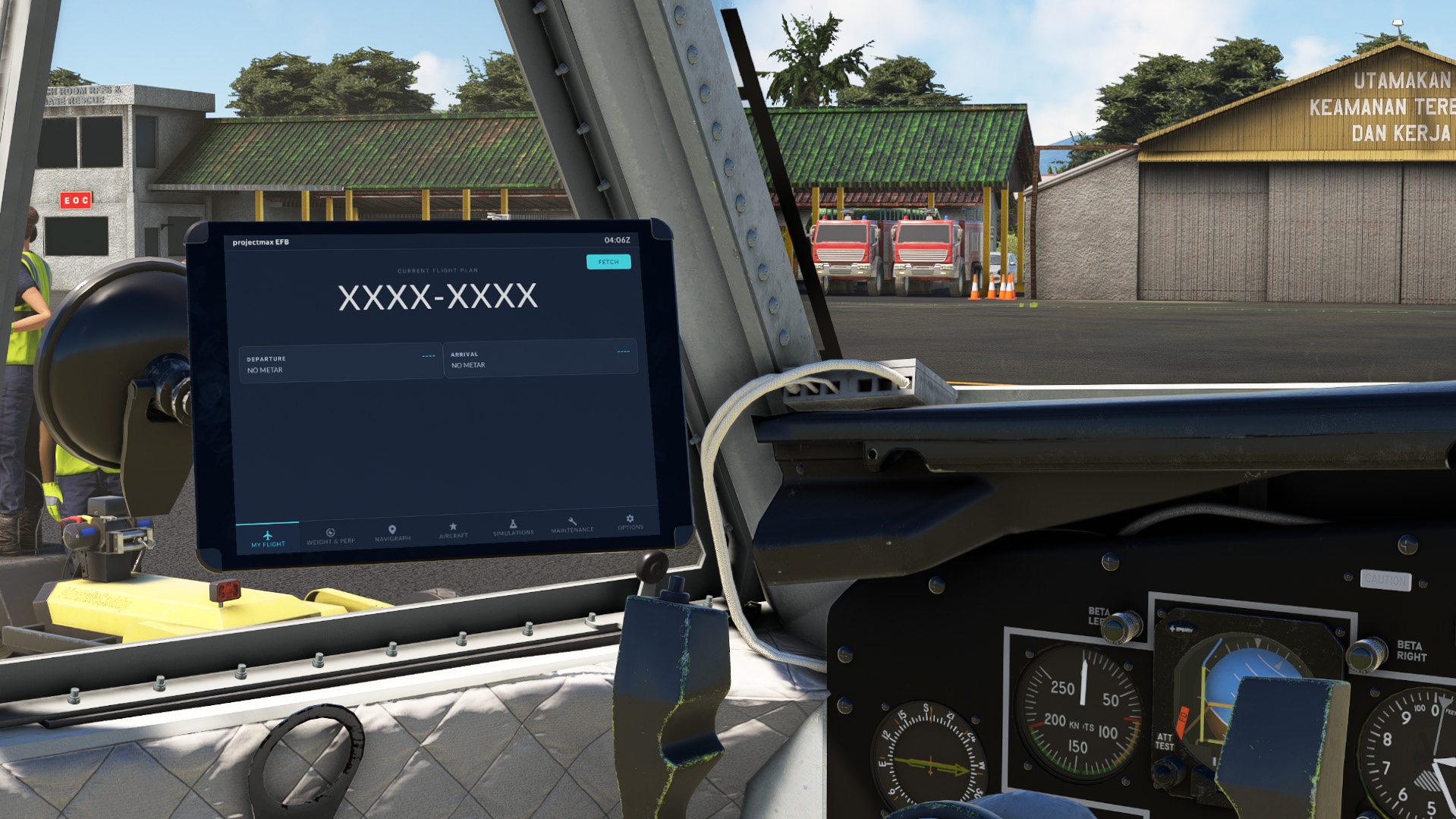
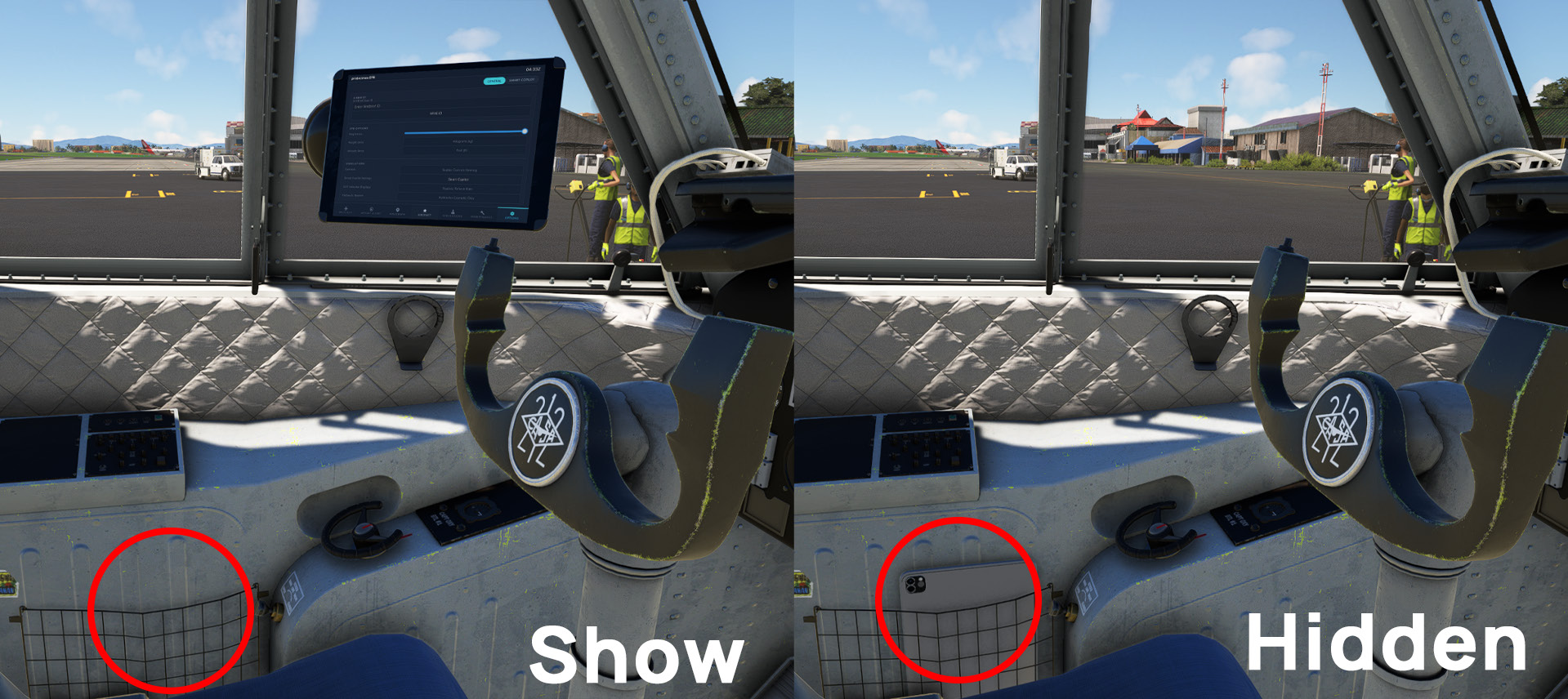
To improve cockpit visibility, the projectmax C212-200 includes a hidden clickspot that allows the EFB to be quickly shown or hidden.
The clickspot is located inside the Captain’s document storage pocket, highlighted by the red circle in the illustration below. Clicking this area toggles the EFB between its visible and hidden states.
When the EFB is hidden, a smartphone is placed inside the storage pocket as a visual indication that the EFB has been stowed. Clicking the same clickspot again restores the EFB to its normal mounted position.
Hiding the EFB only affects its visibility. All EFB functions remain available once it is shown again.
My Flight
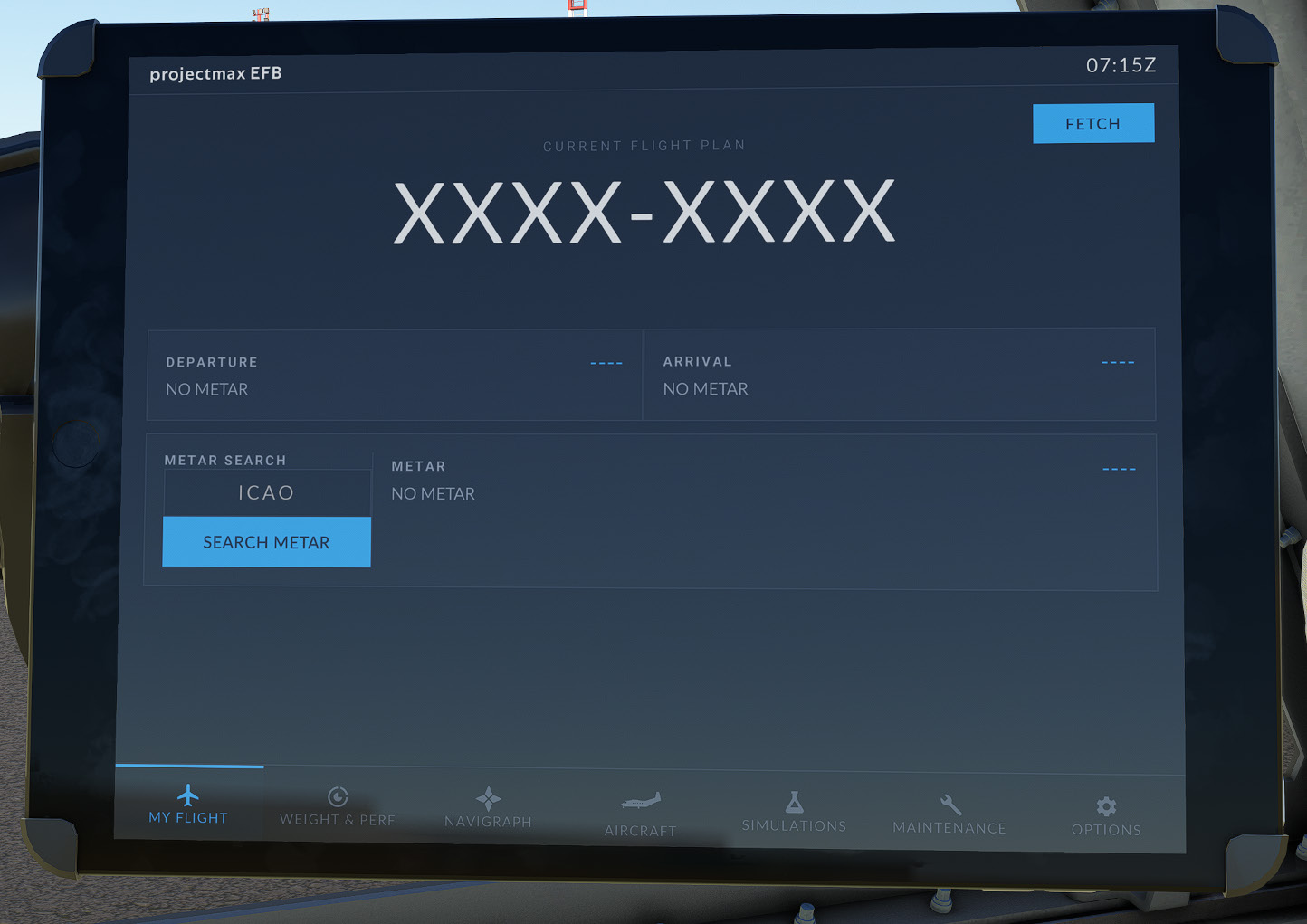
The My Flight page displays the current flight plan together with departure and arrival weather information. When connected to SimBrief, the EFB can automatically import the active flight plan, route string, and METAR data, allowing the pilot to review essential flight information before departure.
Weight & Performance
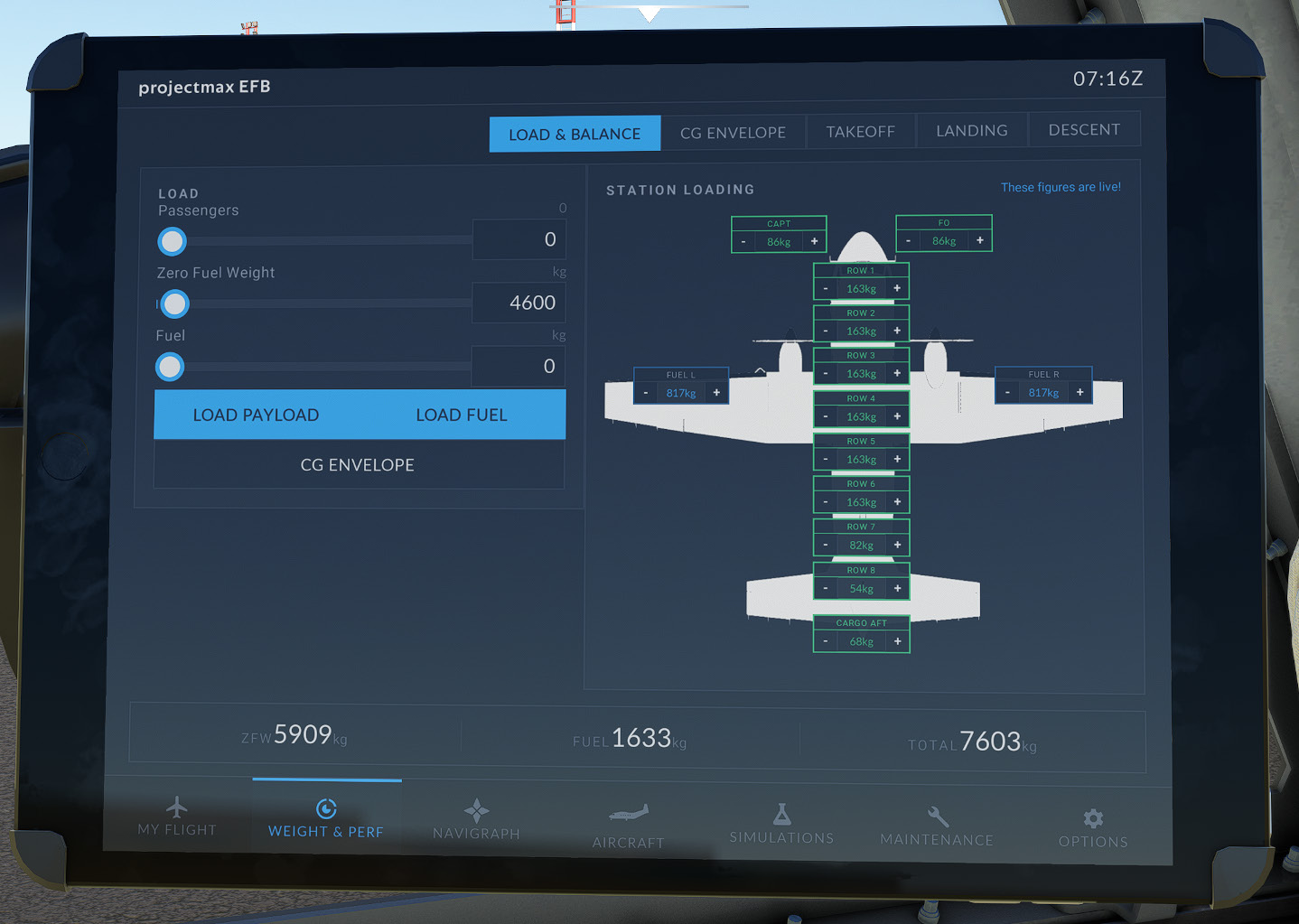
This page combines aircraft loading and performance planning into a single interface.
| Section | Description |
|---|---|
| Load & Balance | Adjust passenger count, payload, and fuel quantity while monitoring the aircraft’s weight distribution in real time. |
| CG Envelope | Displays the aircraft’s current center of gravity relative to the approved operating envelope. |
| Takeoff Performance | Calculates estimated takeoff distance and reference speeds based on aircraft weight and environmental conditions. |
| Landing Performance | Provides landing distance estimates and reference approach speed. |
| Top of Descent Calculator | Calculates the recommended descent point and required vertical speed for the selected altitude. |
CG Envelope
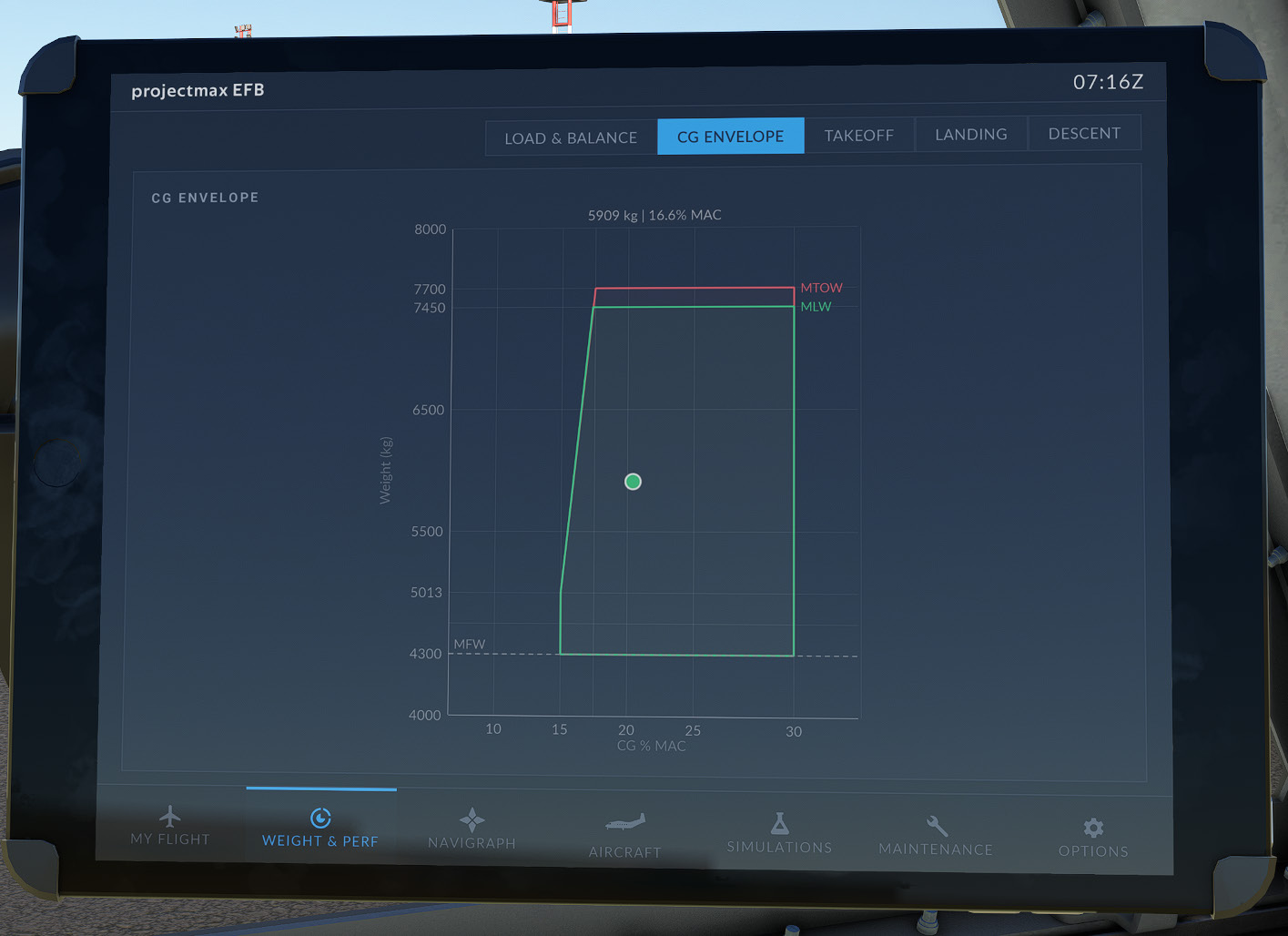
The CG Envelope page provides a graphical representation of the aircraft’s current centre of gravity (CG) in relation to the approved operating envelope. The display combines the current aircraft weight and CG position, allowing the pilot to quickly verify that the aircraft remains within the certified loading limits before departure and throughout flight.
The horizontal axis represents the aircraft’s Centre of Gravity (% MAC), while the vertical axis represents the aircraft weight. Two operating envelopes are displayed:
- MTOW Envelope — Maximum Takeoff Weight operating limits.
- MLW Envelope — Maximum Landing Weight operating limits.
A live indicator displays the aircraft’s current loading condition based on the payload and fuel entered through the Load & Balance page. As payload or fuel quantity changes, the indicator updates automatically, allowing immediate verification that the aircraft remains within the approved CG range. The display also provides a numerical readout of the current aircraft weight together with its calculated CG position.
Takeoff Performance
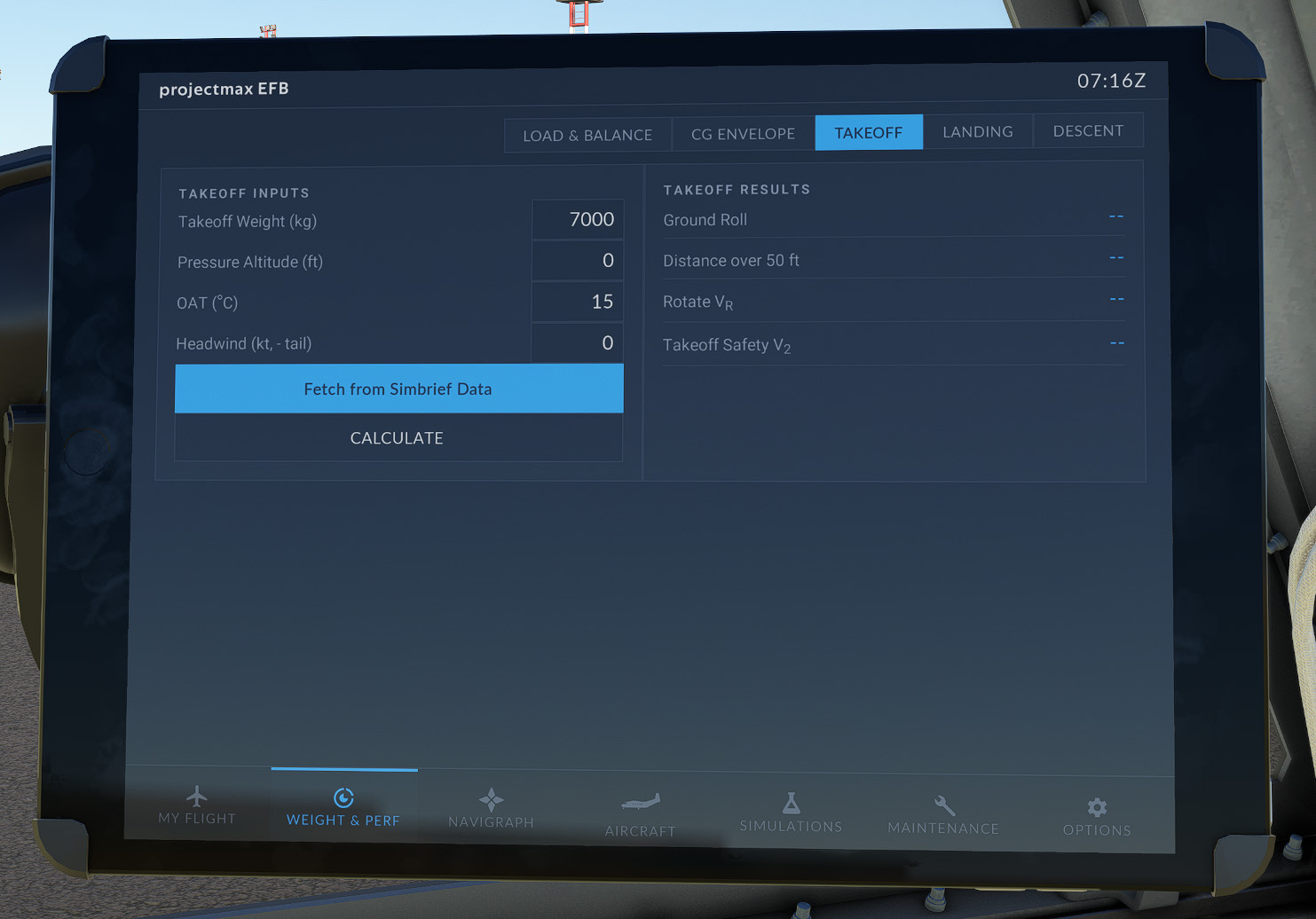
The Takeoff page provides an estimated takeoff performance calculation based on the aircraft loading and environmental conditions entered by the pilot.
The calculator requires the following inputs:
- Takeoff Weight
- Pressure Altitude
- Outside Air Temperature (OAT)
- Headwind (tailwind entered as a negative value)
The Fetch from SimBrief Data function may also be used to populate the available environmental data when a SimBrief flight plan has already been loaded.
After selecting Calculate, the EFB estimates:
- Ground Roll
- Distance over 50 ft obstacle
- Rotate Speed (VR)
- Takeoff Safety Speed (V2)
The calculation considers aircraft weight together with corrections for pressure altitude, outside air temperature, and wind conditions. Headwind reduces the required takeoff distance, while tailwind increases the estimated distance. The calculated VR is also transmitted to the aircraft’s V1 callout system for use during takeoff.
All values are provided as operational estimates intended for simulation purposes only.
Landing Performance
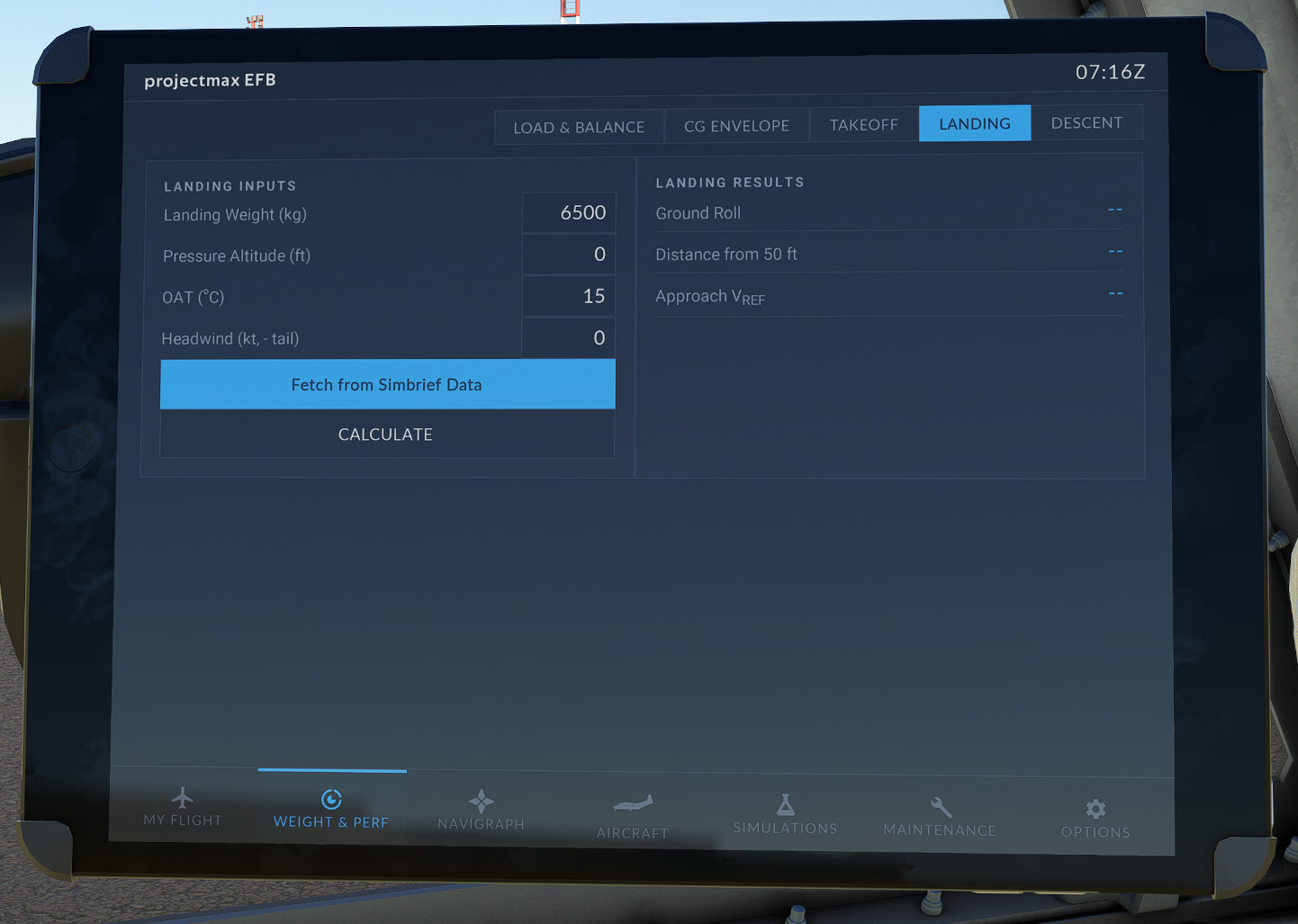
The Landing page provides an estimated landing performance calculation using the current landing conditions entered by the pilot.
The calculator requires the following inputs:
- Landing Weight
- Pressure Altitude
- Outside Air Temperature (OAT)
- Headwind (tailwind entered as a negative value)
The Fetch from SimBrief Data function may also be used to populate the available environmental data when a SimBrief flight plan has already been loaded.
After selecting Calculate, the EFB estimates:
- Landing Ground Roll
- Distance over 50 ft obstacle
- Reference Landing Speed (VREF)
Landing performance is estimated from aircraft weight together with corrections for atmospheric conditions and wind. Increasing landing weight, higher density altitude, or tailwind conditions increase the required landing distance, while headwind reduces the estimated landing distance.
These results are intended solely as simulation references and should not be used for real-world flight operations.
Descent Planning
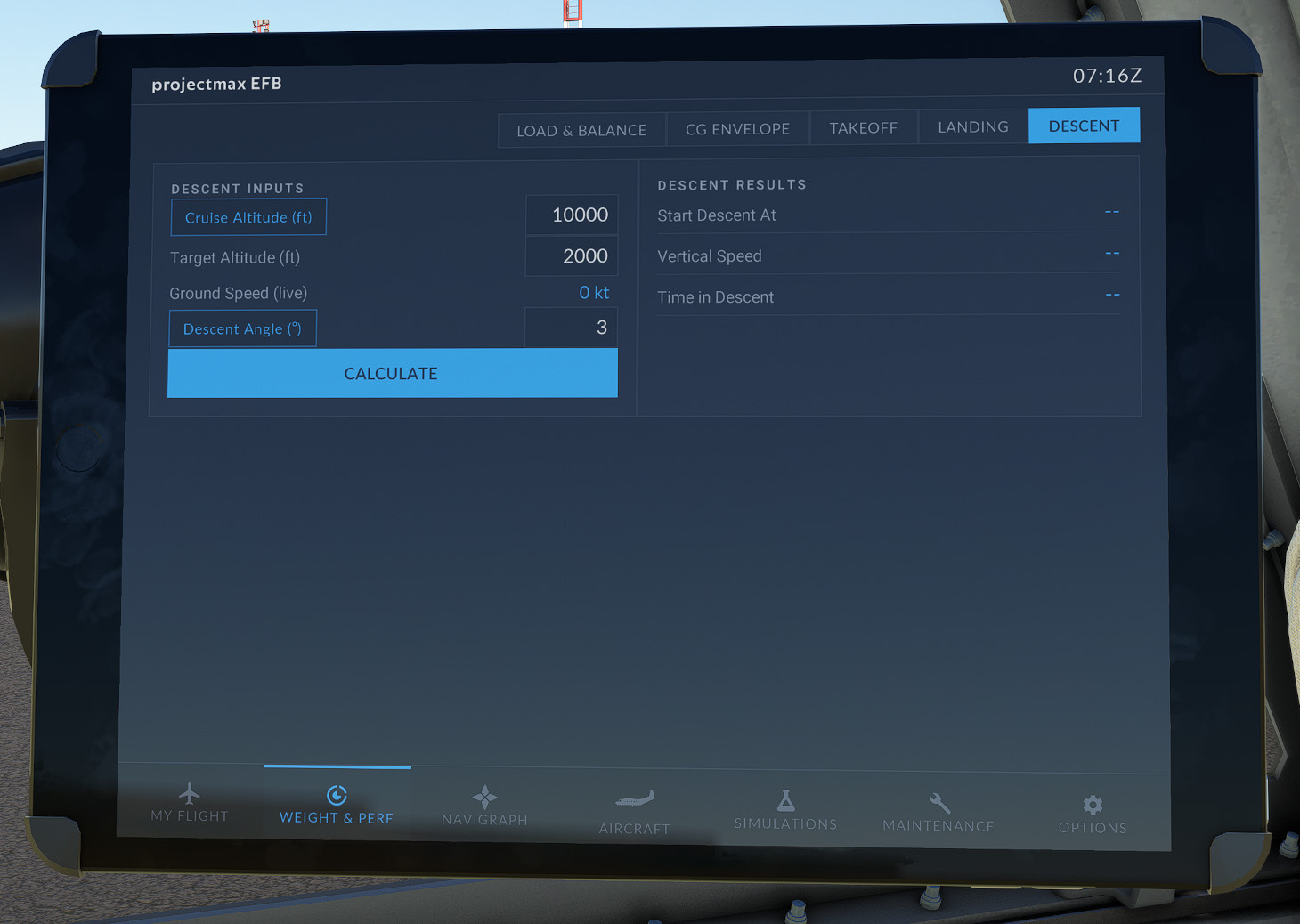
The Descent page assists the pilot in determining an appropriate Top of Descent (TOD) based on the selected descent profile.
The calculator supports two descent methods:
- Descent Angle — descent is planned using a selected flight path angle.
- Descent Rate — descent is planned using a constant vertical speed.
Cruise altitude may either be entered manually or obtained automatically from the aircraft’s current indicated altitude using Current Altitude mode. Ground speed is continuously read from the simulator, ensuring that descent calculations remain representative of the current flight conditions.
After calculation, the page provides:
- Top of Descent Distance (nautical miles before the destination)
- Required Vertical Speed
- Estimated Time to Descent
When using Current Altitude mode, the calculator continuously updates the results as the aircraft altitude and ground speed change, providing real-time descent guidance throughout the cruise phase.
The displayed values are intended as planning aids for simulator operation.
Navigraph
The Navigraph page provides direct integration with Navigraph Charts, allowing pilots to access airport charts, procedures, and navigation data without leaving the simulator. After signing in with a Navigraph account, charts can be viewed directly within the EFB using the integrated chart viewer.
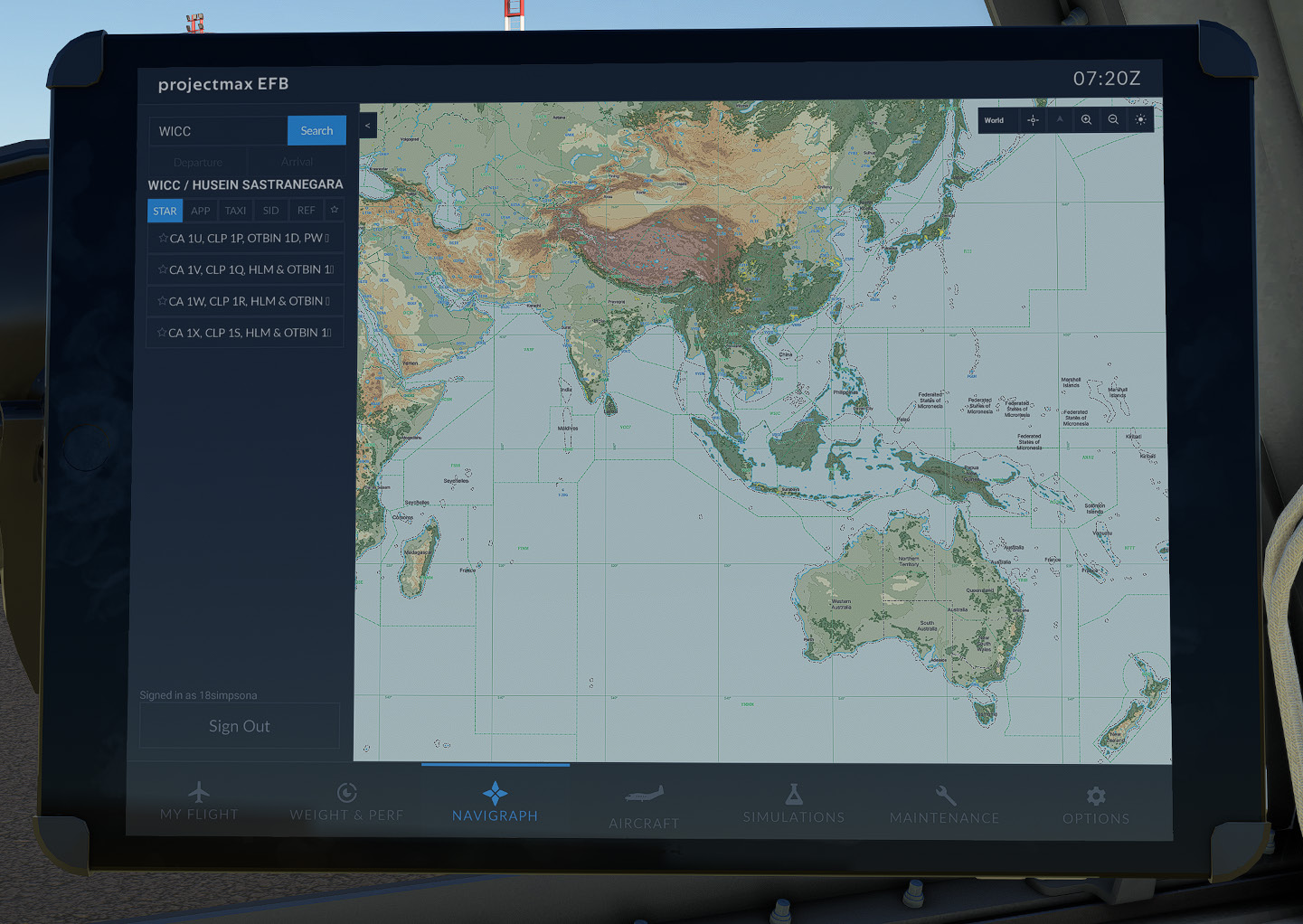
An active Navigraph subscription is required to use this feature. Users without a valid subscription will not be able to access Navigraph Charts within the EFB.
Aircraft
This page provides access to aircraft-specific controls, configuration options, and system management functions available through the EFB.
| Section | Description |
|---|---|
| Ground & Doors | Manage external aircraft equipment and operate passenger, cargo, and service doors while the aircraft is on the ground. |
| Customization | Configure various aircraft options, including cockpit preferences and visual settings, to personalize the aircraft according to user preference. |
| Checklists | Interactive normal checklists for each phase of flight. |
| States | Prepare the cockpit automatically for engine start, the next leg, or a full shutdown. |
Ground & Doors
The Ground & Doors page provides an interactive top-down aircraft layout that allows pilots to manage ground equipment and aircraft access points directly from the EFB. Each item can be operated by selecting its corresponding location on the aircraft diagram, providing a quick visual overview of the aircraft configuration while on the ground.
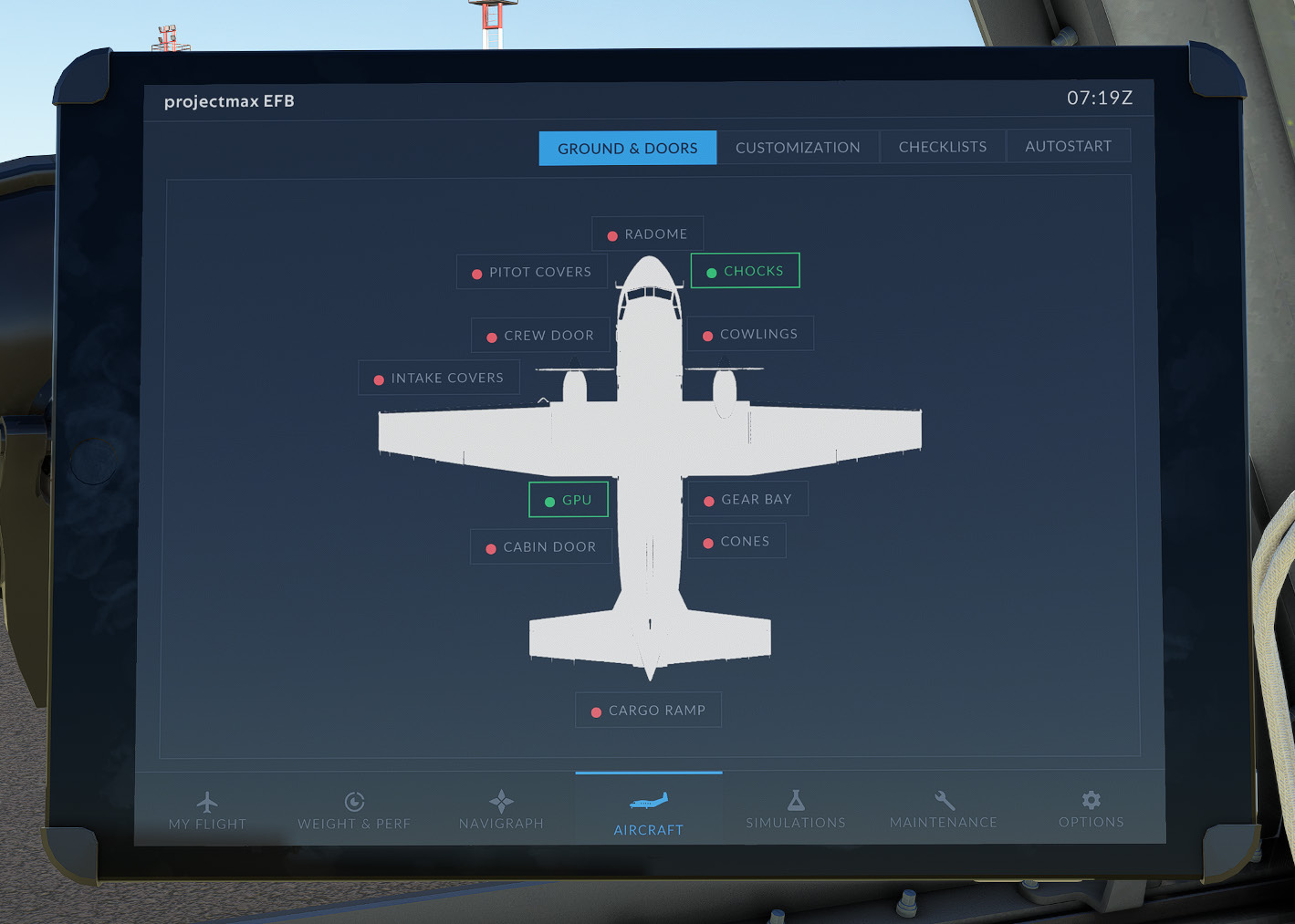
The page includes the following controls:
| Control | Function |
|---|---|
| Radome | Opens or closes the nose radome. |
| Pitot Covers | Installs or removes the pitot tube covers. |
| Chocks | Installs or removes the wheel chocks. |
| Crew Door | Operates the left crew entrance door. |
| Cowlings | Opens or closes the engine cowlings. |
| Intake Covers | Installs or removes the engine intake covers. |
| Maintenance Props | Deploys or stows the engine maintenance support props. |
| Ground Power Unit (GPU) | Connects or disconnects external ground power. |
| Landing Gear Bay | Opens or closes the landing gear access panels. |
| Cabin Door | Operates the main passenger cabin door. |
| Cones | Places or removes ground safety cones around the aircraft. |
| Cargo Ramp | Opens or closes the rear cargo ramp. |
Certain functions are available only when the aircraft is on the ground or stationary. Some equipment, such as wheel chocks and protective covers, is automatically restricted to prevent operation during inappropriate flight conditions.
Customization
The Customization page allows users to configure various aircraft options to match their preferred cockpit, cabin, and external aircraft configuration. All selected options are automatically saved and restored for future simulator sessions.
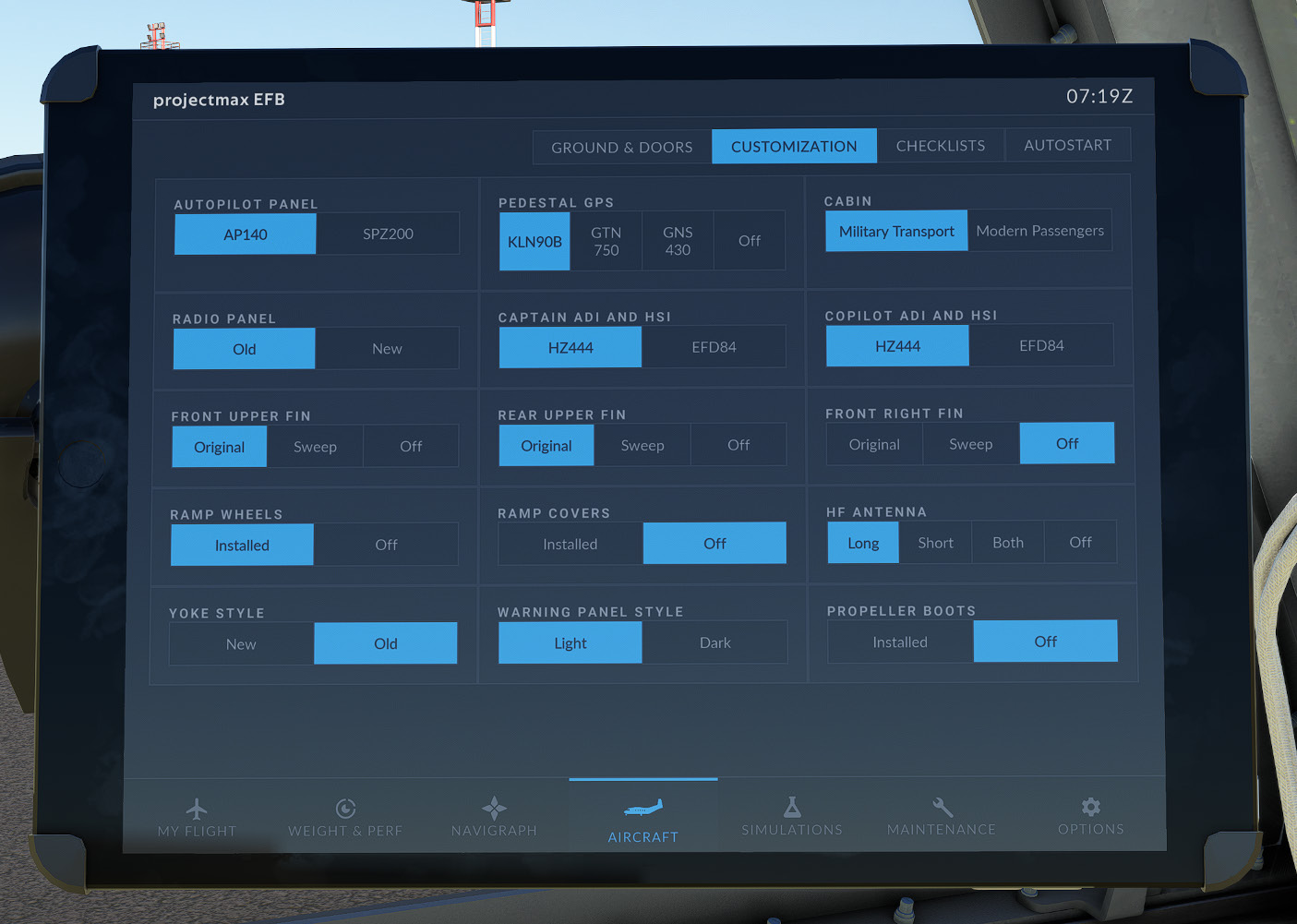
| Option | Description |
|---|---|
| Autopilot Panel | Select between the AP140 and SPZ200 autopilot systems. |
| Pedestal GPS | Choose the installed GPS unit (KLN90B, GTN 750, or GNS 430). |
| Cabin Configuration | Select either the Military Transport or Modern Passenger cabin. |
| Radio Panel | Choose between the classic or modern radio panel layout. |
| Captain ADI & HSI | Select the Captain’s flight instrument configuration. |
| Copilot ADI & HSI | Select the First Officer’s flight instrument configuration. |
| Upper Fins | Configure the front and rear upper fin installations. |
| Front Right Fin | Select the preferred right-side fin configuration. |
| Ramp Wheels | Install or remove cargo ramp wheels. |
| Ramp Covers | Install or remove cargo ramp covers. |
| HF Antenna | Select the desired HF antenna configuration. |
| Yoke Style | Choose between the New or Old control yoke design. |
Checklist
The Checklists page provides a collection of interactive Normal Checklists designed to assist pilots throughout each phase of flight. Individual checklist items can be marked as completed by selecting them, while the EFB displays the completion progress for the currently selected checklist. Checklist status is maintained for the current session and may be reset at any time using the Reset function.
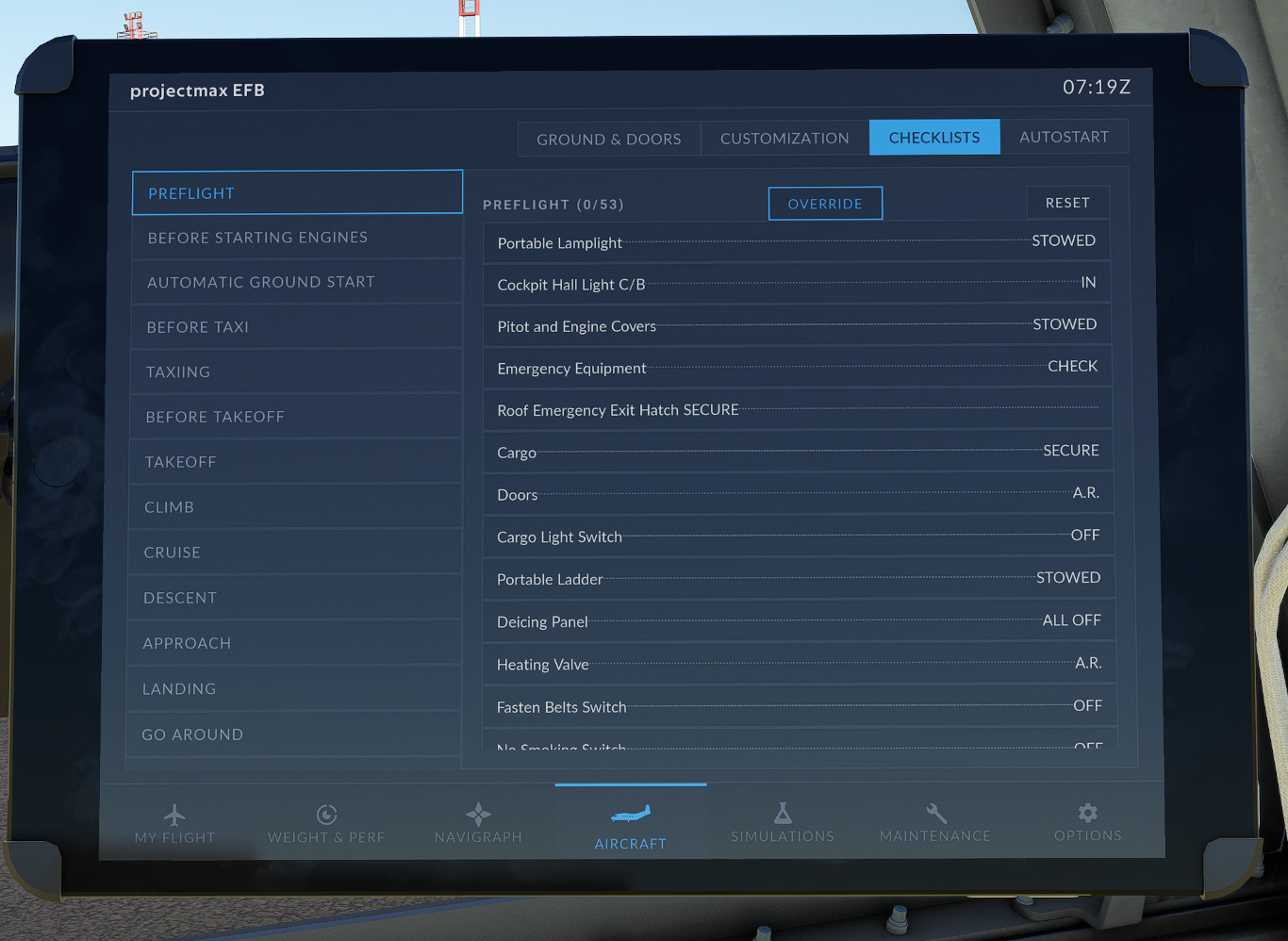
The following Normal Checklists are included:
- Preflight
- Before Starting Engines
- Automatic Ground Start
- Before Taxi
- Taxiing
- Before Takeoff
- Takeoff
- Climb
- Cruise
- Descent
- Approach
- Landing
- Go Around
- After Landing
- Parking
- Engine Shutdown
States
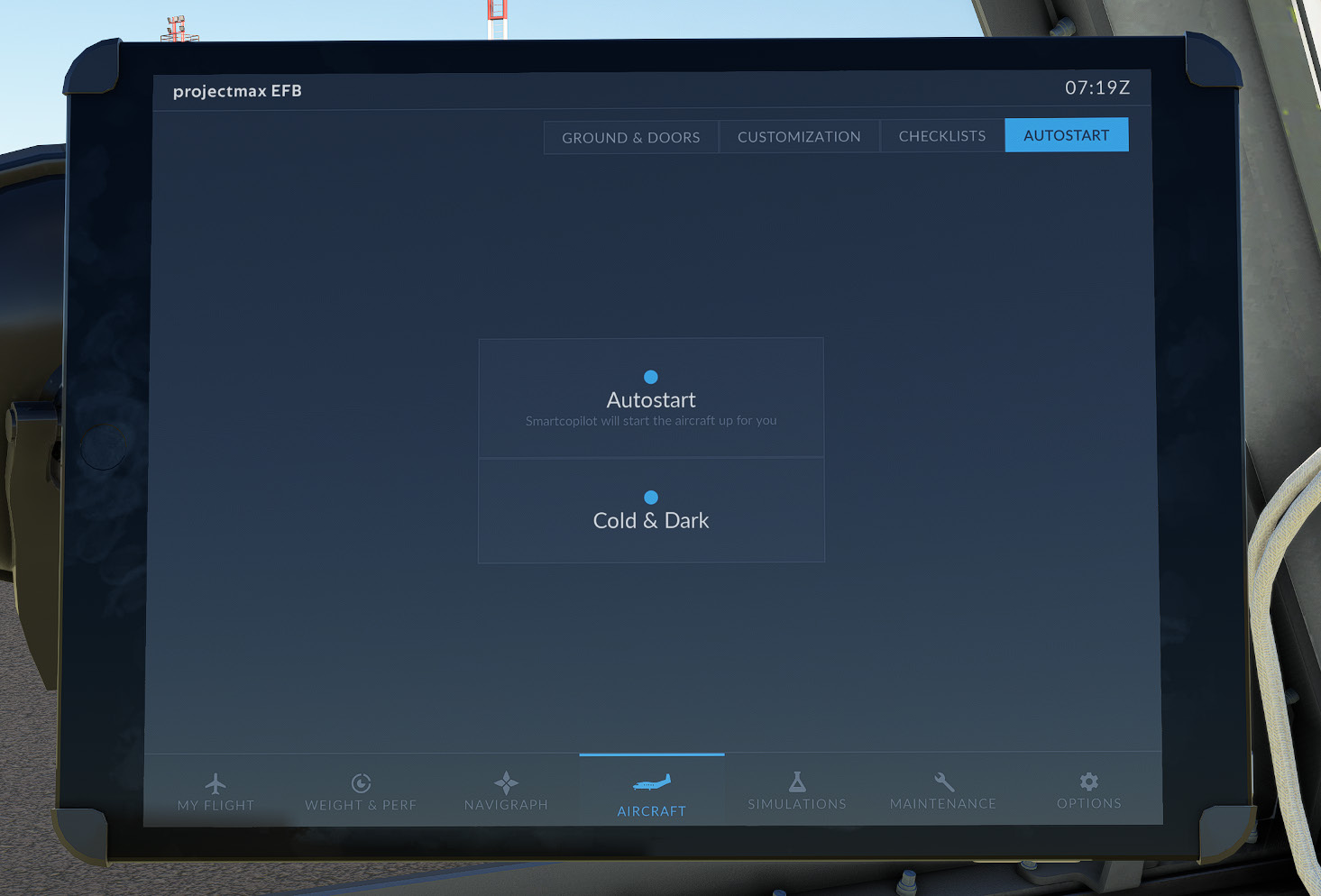
The States page prepares the aircraft automatically, reducing setup time before flight. Three states are available:
| State | Description |
|---|---|
| Autostart | SmartCopilot starts the aircraft for you, operating each cockpit switch one at a time in sequence, just as a copilot would. |
| Turnaround | Sets up the electrics and lights for the next leg without touching the engines — the fuel valves, fuel pumps, and engine start switches are left as they are. |
| Cold & Dark | Aircraft completely shut down with all systems secured. |
Simulations
The Simulations page provides access to aircraft-specific simulation features and training utilities available within the EFB. These functions allow pilots to simulate abnormal conditions, monitor aircraft system status, and review operational information during flight.
| Section | Description |
|---|---|
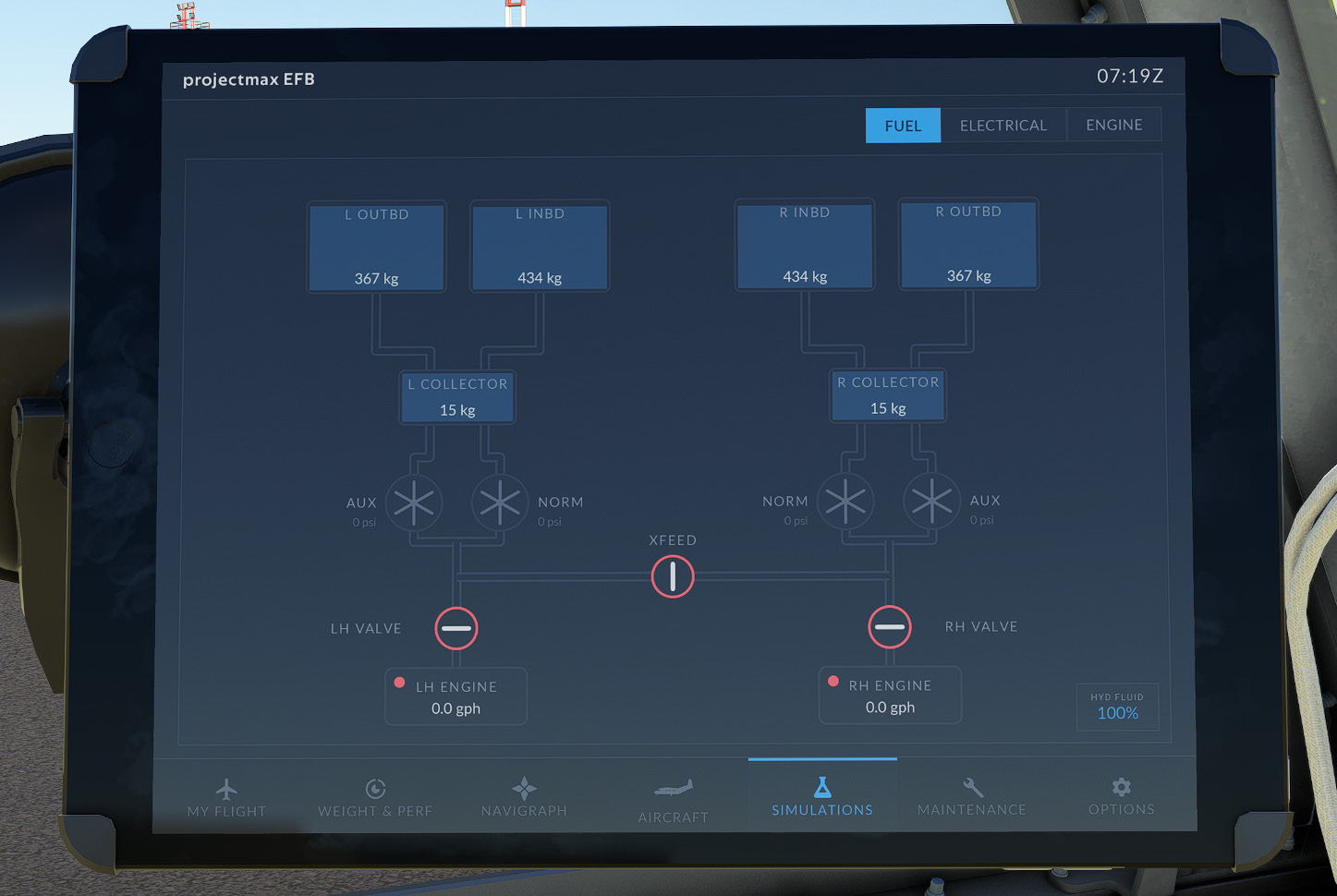
| Fuel | Displays the aircraft fuel system layout, including fuel tanks, valves, pumps, and fuel flow indications. |
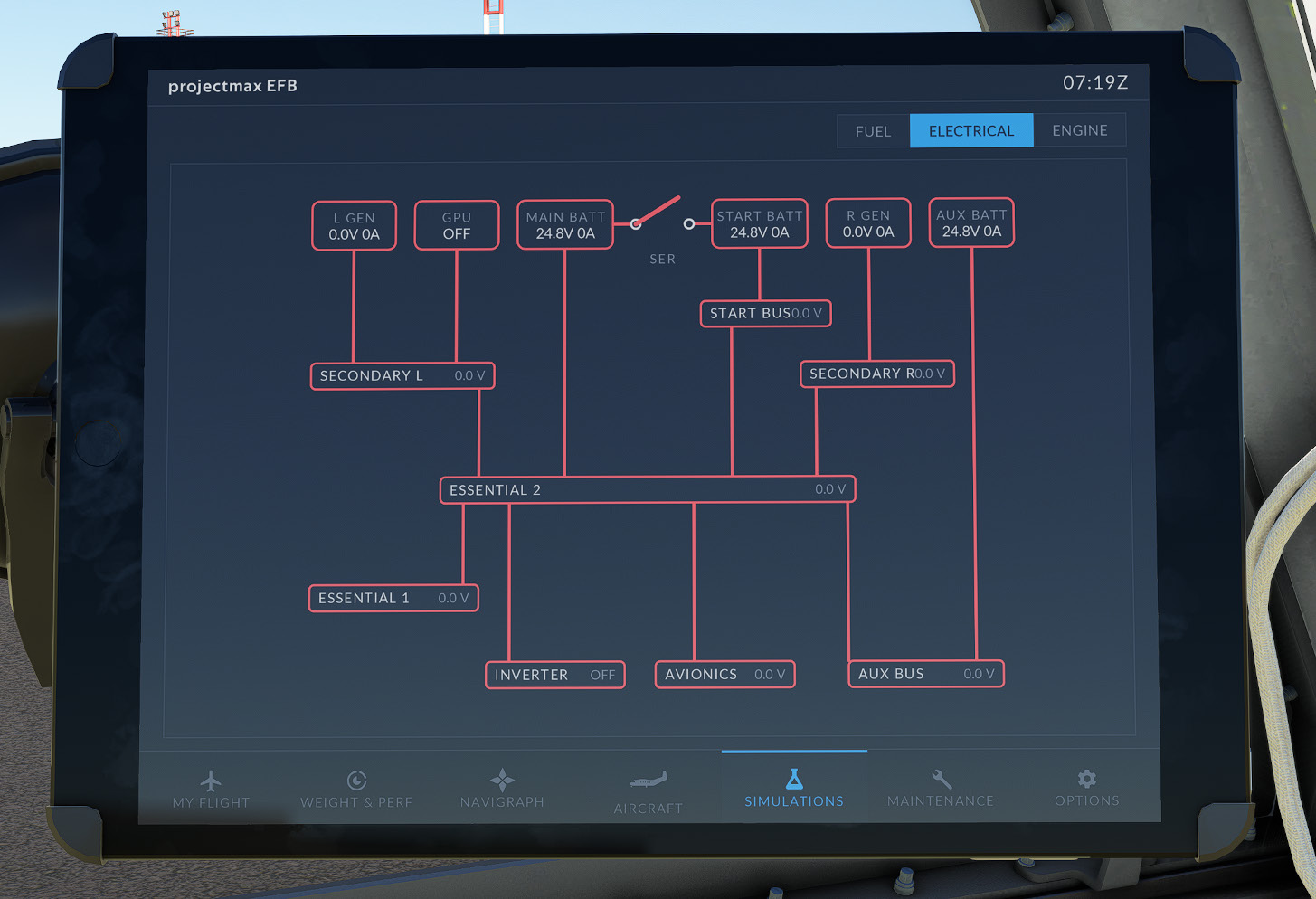
| Electrical | Provides a live electrical system schematic showing power sources, batteries, generators, buses, and electrical distribution throughout the aircraft. |
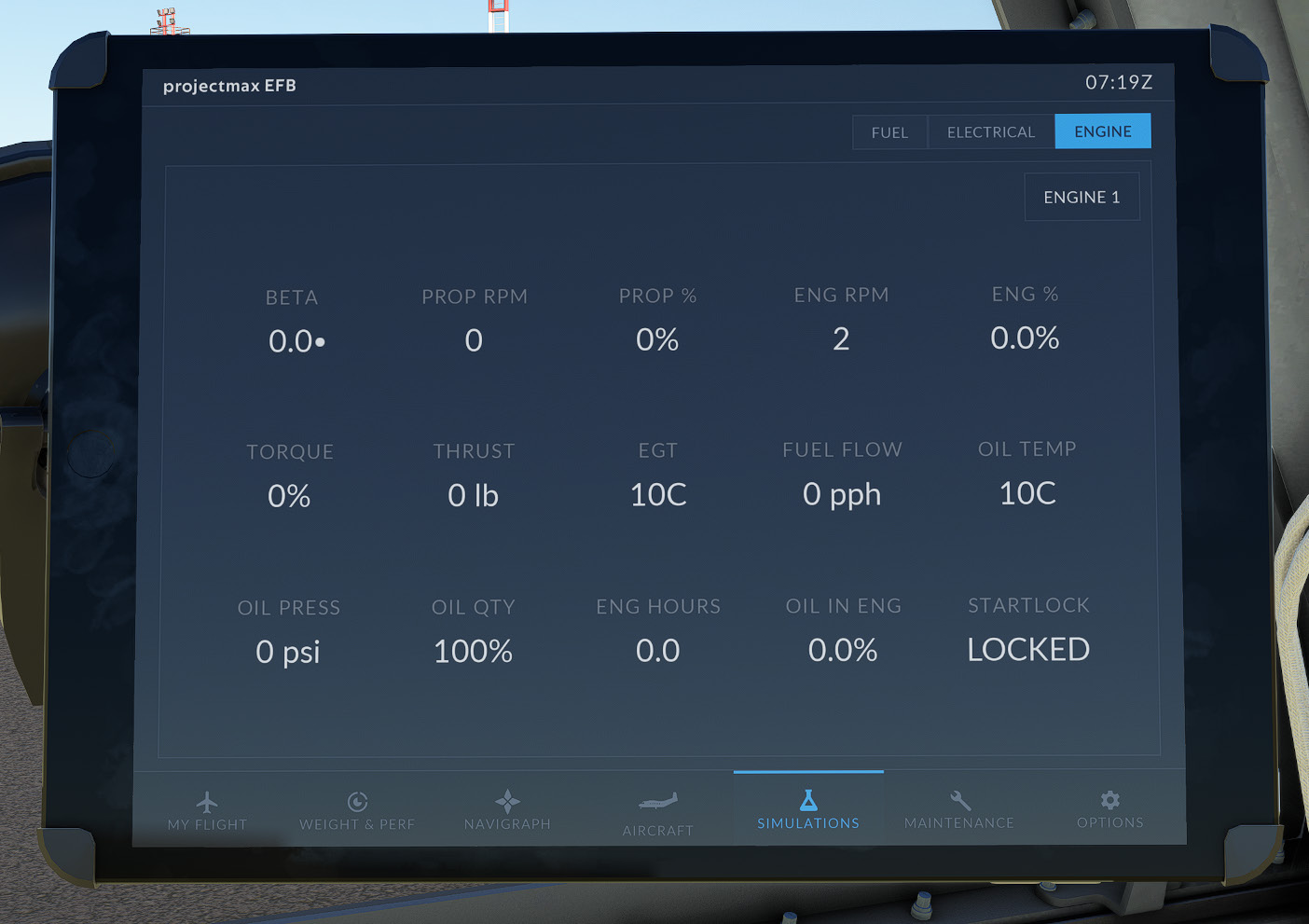
| Engine | Displays engine system information, including the engine operating configuration and associated system status. |
Fuel
The Fuel page presents a graphical representation of the aircraft fuel system. Fuel tanks, booster pumps, shutoff valves, crossfeed configuration, and fuel flow are displayed to provide a clear overview of the current fuel distribution throughout the aircraft.
Electrical
The Electrical page displays the aircraft electrical distribution system in real time. Batteries, generators, external power, electrical buses, and associated power paths are shown together with live voltage and current indications, allowing the pilot to monitor electrical system operation at a glance.
Engine
The Engine page provides a graphical overview of the engine systems and associated operating parameters. System status is displayed in real time to assist with engine monitoring during all phases of flight.
Maintenance
The Maintenance page provides an overview of the aircraft’s simulated maintenance status and allows maintenance actions to be performed. Operational information such as engine hours, engine health, battery temperature, oxygen pressure, hydraulic fluid quantity, engine oil level, and brake wear is displayed for monitoring purposes.
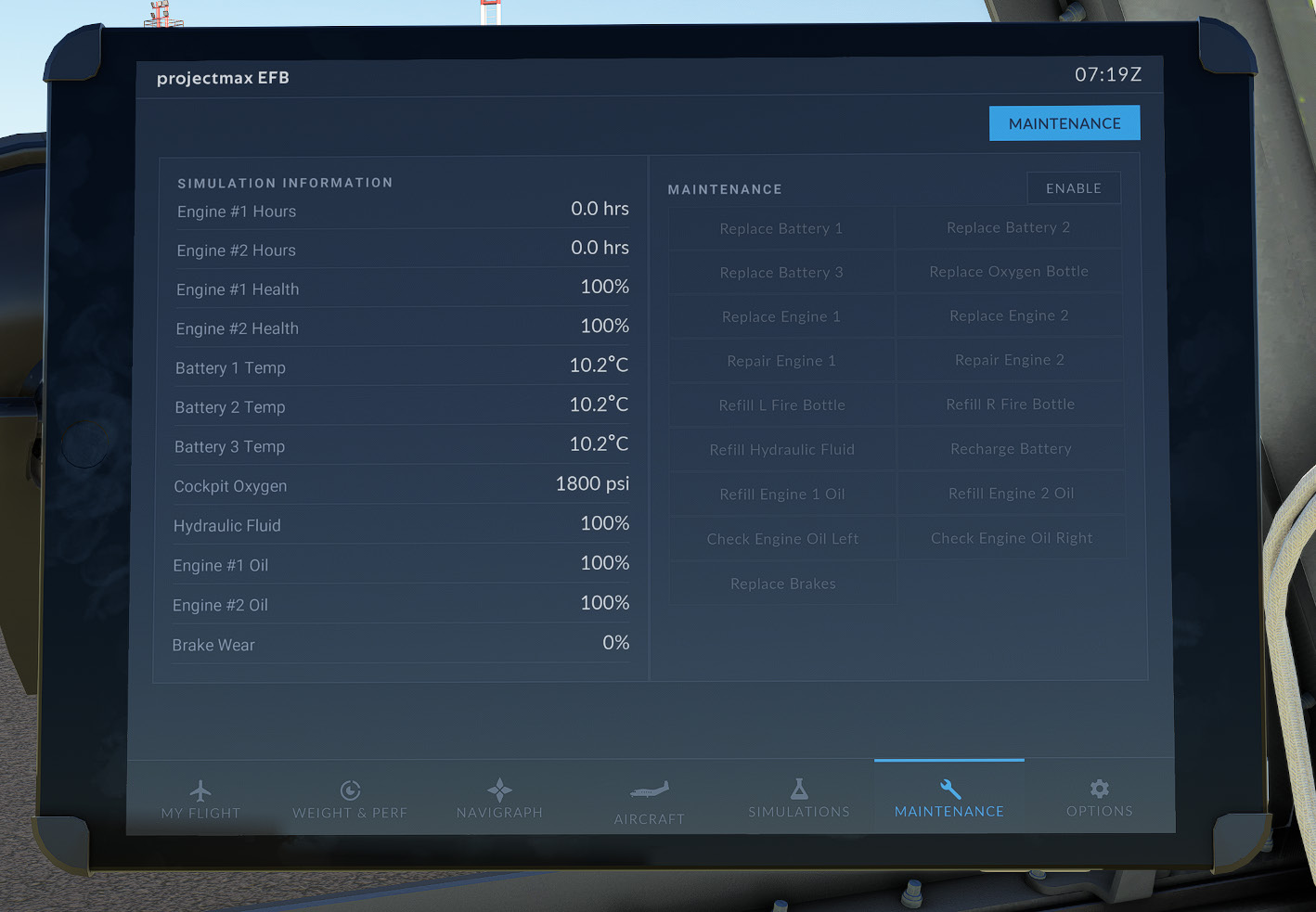
| Section | Description |
|---|---|
| Simulation Information | Displays the current condition and service status of major aircraft systems, including engines, batteries, hydraulic fluid, oxygen supply, and brakes. |
| Maintenance | Provides maintenance actions such as replacing components, refilling consumables, repairing engines, and servicing aircraft systems. |
The maintenance actions are locked by default to prevent accidental use. Press ENABLE on the Maintenance card to unlock them. The following actions are available:
| Category | Actions |
|---|---|
| Engines | Replace Engine 1 / 2, Repair Engine 1 / 2 |
| Engine Oil | Refill Engine 1 / 2 Oil, Check Engine Oil Left / Right |
| Batteries | Replace Battery 1 / 2 / 3, Recharge Battery |
| Fire Protection | Refill L / R Fire Bottle |
| Other | Replace Oxygen Bottle, Refill Hydraulic Fluid, Replace Brakes |
For the difference between replacing and repairing an engine, see Engine Maintenance.
Options
The Options page provides access to configurable EFB settings and aircraft-specific preferences. These options allow users to customize the EFB interface, adjust simulation behavior, integrate external services, and configure SmartCopilot features.
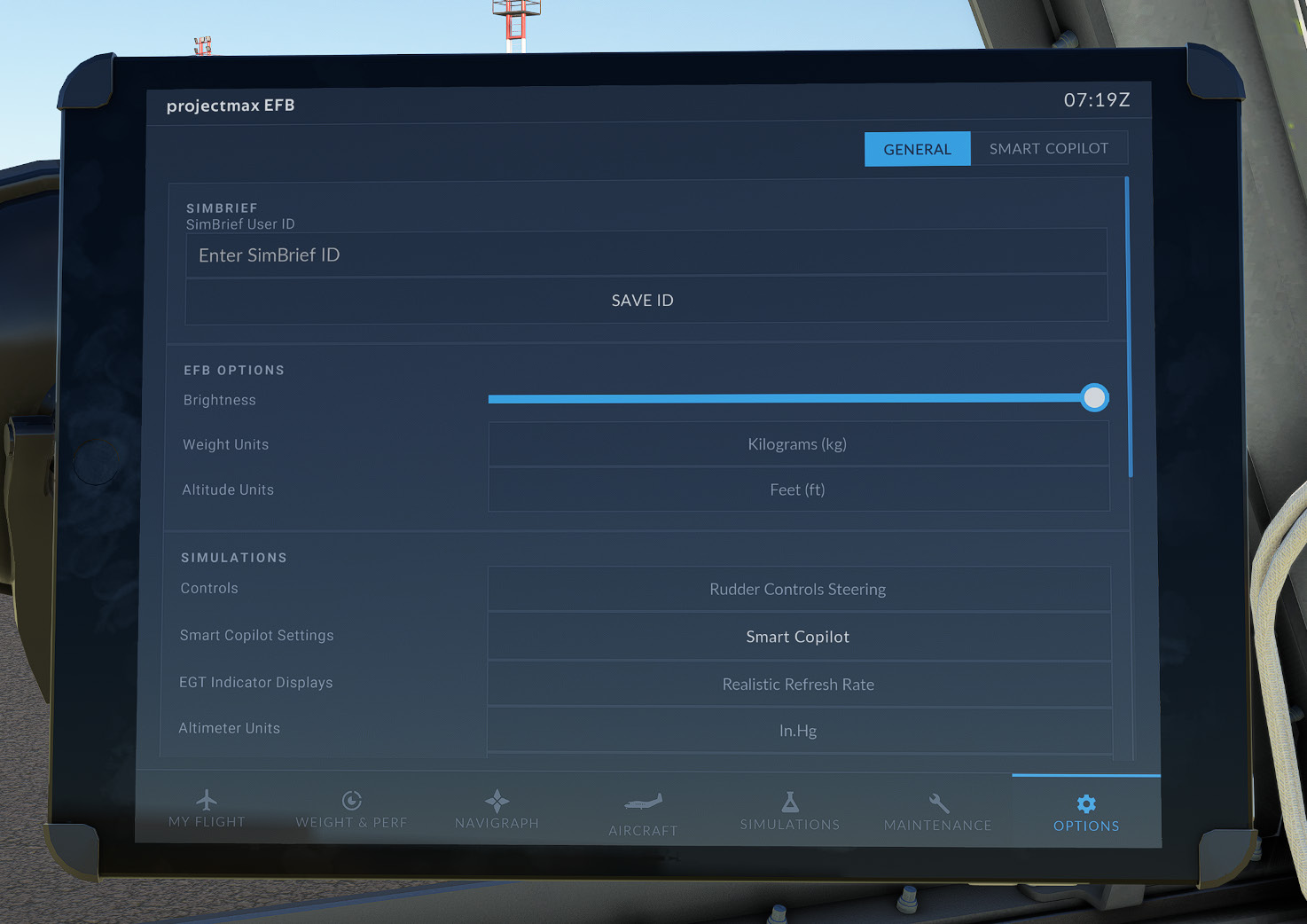
| Section | Description |
|---|---|
| General | Configure SimBrief integration, EFB preferences, display settings, unit selection, and aircraft simulation options. |
| SmartCopilot | Configure automation assistance and aural assistance features for supported SmartCopilot operations. |
General
The General page contains the primary EFB configuration settings used for aircraft operation and user preferences. Changes made on this page are applied automatically and remain available for future simulator sessions.
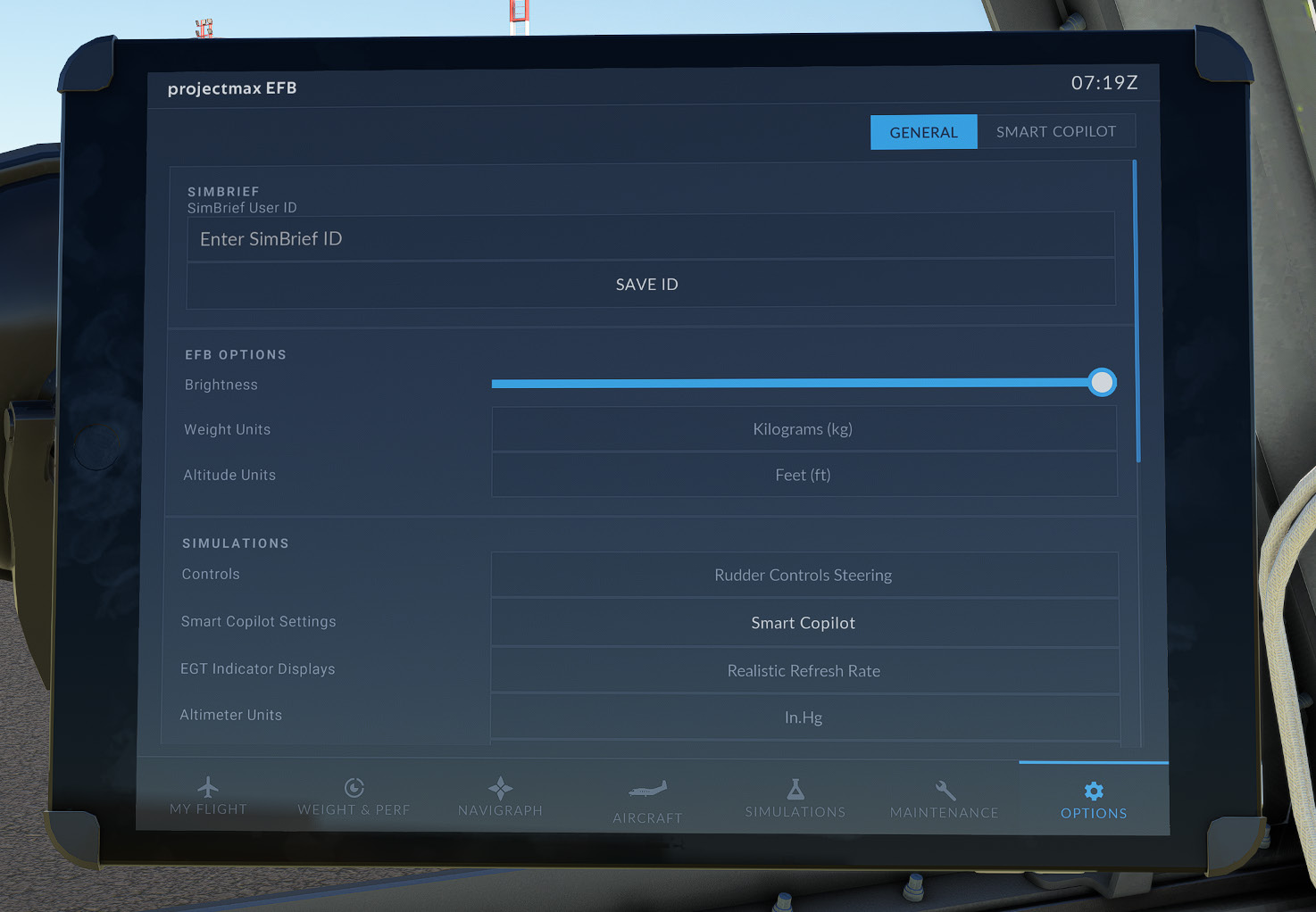
| Option | Description |
|---|---|
| SimBrief User ID | Links the EFB to a SimBrief account for flight plan integration. |
| Brightness | Adjusts the EFB display brightness. |
| Weight Units | Selects the preferred weight unit. |
| Altitude Units | Selects the preferred altitude unit. |
| Controls | Configures rudder steering behavior. |
| SmartCopilot Settings | Opens the SmartCopilot settings page. |
| EGT Indicator Displays | Selects the engine indication refresh mode. |
| Altimeter Units | Selects the altimeter pressure unit (inHg or hPa). |
| Sync Course 1 & 2 | Links the Captain and First Officer course selections. |
| Sync Left and Right Baro | Links the Captain and First Officer barometric settings. |
| EADI FD Type | Selects the Flight Director presentation on the EADI-84: Single Cue or Dual Cue. |
| Magenta Active Leg on EHSI MAP | Shows the active flight-plan leg in magenta on the EHSI MAP format (unrealistic). |
| Heading Bug Dashed Line on EHSI | Draws a dashed line to the heading bug on the EHSI (unrealistic). |
| Disable EFIS Initializing Phase | Skips the EFIS startup sequence (unrealistic). |
| Copilot Visible in Cockpit View | Shows or hides the copilot model in the cockpit. |
| MSFS Tail Number | Shows or hides the MSFS tail number on the aircraft. |
SmartCopilot
The SmartCopilot page provides configuration options for SmartCopilot automation and aural assistance features. These settings are intended to improve multi-crew operation by automating selected aircraft procedures and providing configurable voice callouts.
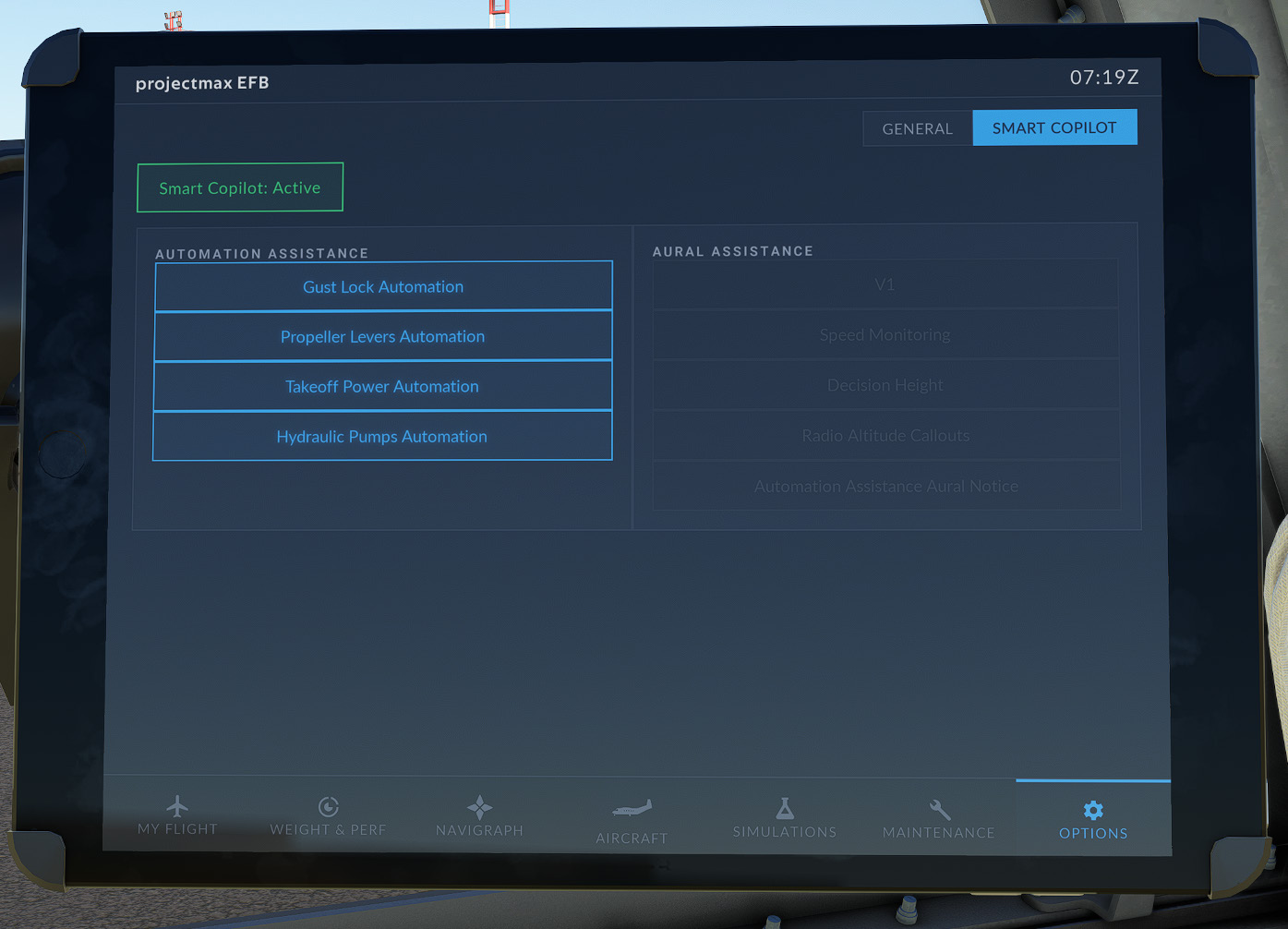
Automation Assistance — the following automation features are available:
- Gust Lock Automation
- Propeller Levers Automation
- Takeoff Power Automation
- Hydraulic Pumps Automation
Aural Assistance — the following aural features are available:
- V1 Callout
- Speed Monitoring
- Decision Height
- Radio Altitude Callouts
- Automation Assistance Aural Notice
SmartCopilot Aural Assistance is not available in the current version. This feature will be provided in a future update.
SimBrief Integration
The projectmax C212-200 includes SimBrief integration, allowing flight plans generated through SimBrief to be loaded easily into the aircraft’s EFB.
A dedicated projectmax C212-200 aircraft profile is available in SimBrief. When creating a flight plan, select the following aircraft configuration:
- Aircraft Type: C212 – C-212-200 Aviocar
- Variant or Airframe: ProjectMAX (MSFS) – C-212-200 Aviocar
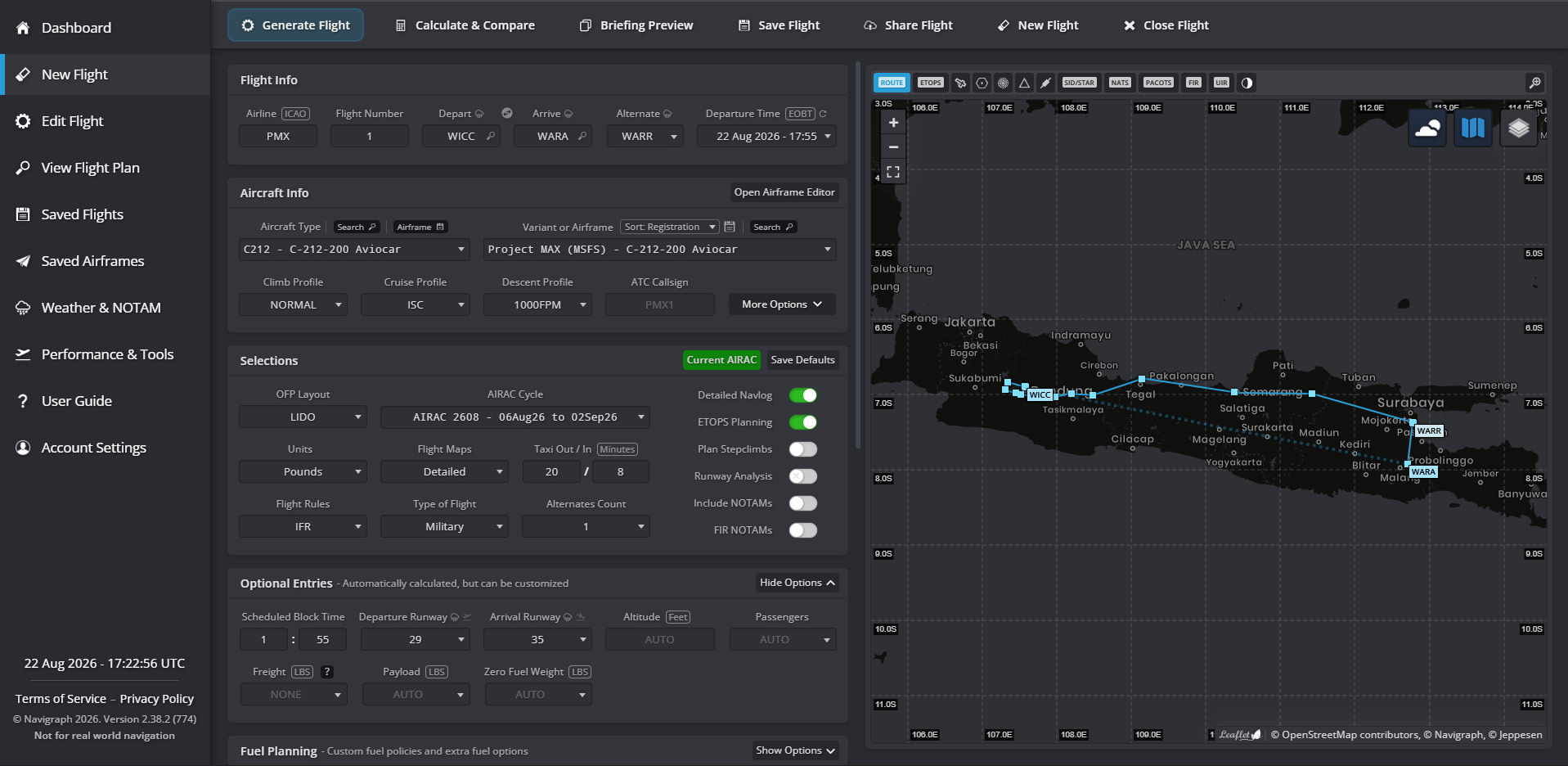
Once the flight plan has been generated, enter your SimBrief User ID in EFB → General to link the EFB to your SimBrief account. The EFB can then retrieve the active flight plan and associated flight information.
When connected to SimBrief, the My Flight page can automatically import the active flight plan and route string, together with the departure and arrival METAR data. SimBrief data is also used to populate the aircraft’s Zero Fuel Weight (ZFW), payload, and fuel for flight preparation. The imported departure and arrival airports are also automatically populated on the Navigraph page, allowing the corresponding airport charts and procedures to be accessed directly from the EFB.
An active SimBrief account is required to use the flight plan integration.